
Portal Instructions
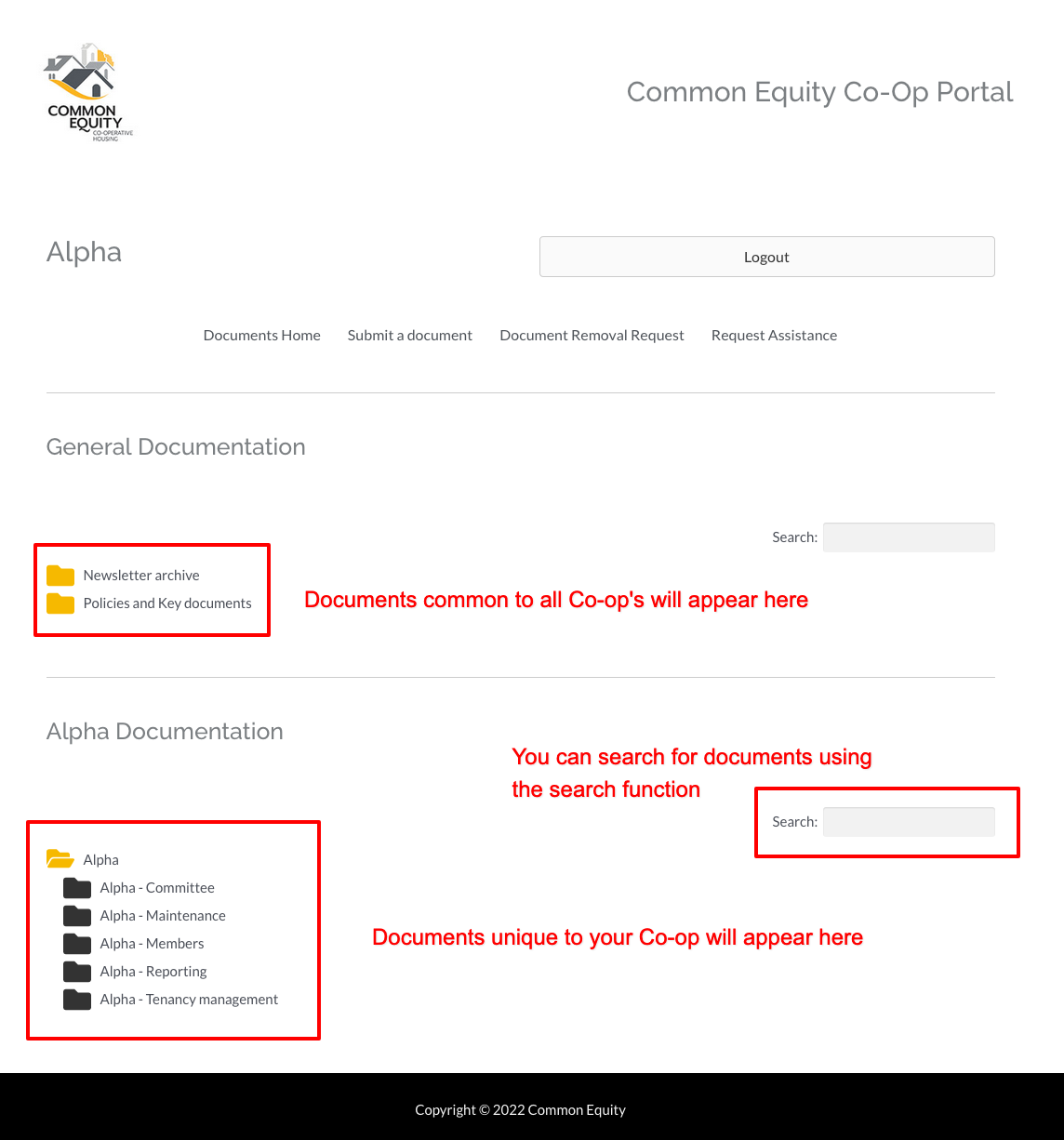
Where to find your documents
All documents are located on the "Documents Home" page within the portal:

Each Co-op has a unique page within the portal containing two sections:
- Common Equity document folders containing documents which are common to all Co-op's
- Folders containing documents unique to your Co-op
Finding and downloading documents
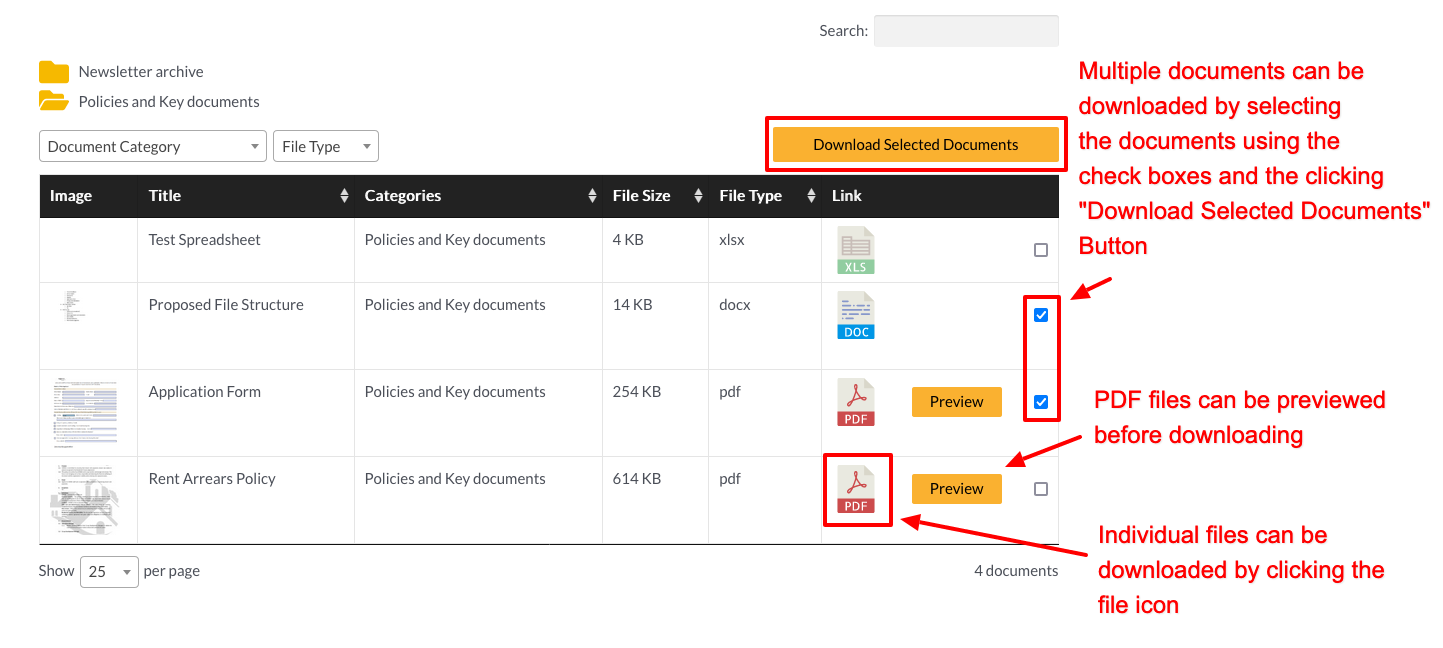
All documents can be searched and downloaded by clicking on their respective folders:
- Multiple documents can be downloaded by selecting
the documents using the check boxes and the clicking
"Download Selected Documents" Button - PDF files can be previewed before downloading
- Individual files can be downloaded by clicking the file icon
Upload a document
To upload a document, navigate to the "Submit a document" page in the menu and submit the document using the form on that page:

Documents are sent to the support team to be uploaded and you will be notified when the document is available in your library (usually within 24 hours of submitting).
NB: Only the following types of files can be submitted: doc,docx,xls,xlsx,pdf,txt,rtf (max file size: 10mb)
Remove a document
To remove a document, navigate to the "Document Removal Request" page in the menu and submit the document removal request using the form on that page:

Documents removal requests are sent to Common Equity and you will be notified when the document has been removed from your library (usually within 24 hours of submitting) or if clarification is required.
NB: Documents can be re-submitted if removed by accident etc.
Request Assistance
To request assistance, navigate to the "Request Assistance" page in the menu and submit your request using the form on that page.
Before asking for assistance please make sure you follow the instructions including the accepted file types and file size limits.
Please do not call Common Equity for assistance as staff may not be able to help you over the phone.
